



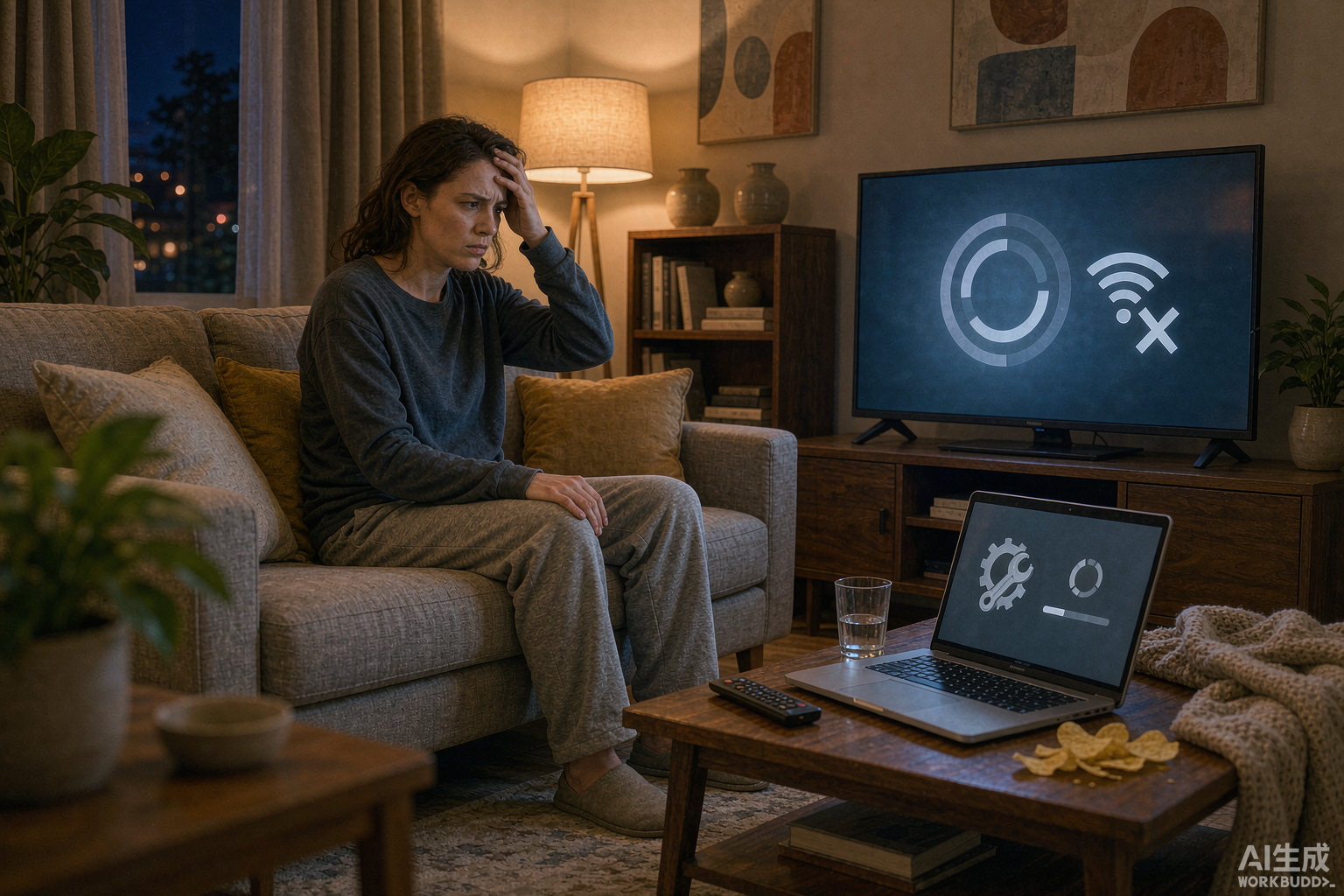
‘Cannot connect to server’ is the most alarming IPTV error — and almost never as bad as it looks. The message covers a dozen different causes, from a tired router to a provider moving servers. Work through this checklist in order.
Step 1: Identify Which Kind of Error You Have
- All channels dead + app won’t log in: connection or credentials problem.
- App crashes at launch: app data problem on your device.
- Some channels dead, others fine: provider-side — report, don’t tinker.
- Works on one device, not another: device-specific — compare the two setups.
The 10-Step Fix Checklist
- Restart your router. Unplug 30 seconds. Fixes cache bloat and ISP session drops more often than any other step.
- Check your internet on another device. If YouTube also fails, this is a home network issue, not IPTV.
- Verify your subscription is active. Expired lines often produce ‘cannot connect’ instead of a clear expiry message.
- Re-enter credentials. One wrong character in an Xtream Codes login fails silently.
- Restart the app (force-close, not just back-button) and reboot the device.
- Clear the app cache: Android Settings → Apps → your player → Clear Cache (NOT Clear Data, which wipes your login).
- Update or reinstall the app. Outdated players break when providers upgrade their API.
- Try a different app. If the same subscription plays in another player, the first app is the problem — see our player comparison for alternatives.
- Test the provider’s server status. Message support; during major events servers occasionally hit capacity. A provider with responsive support answers within minutes.
- Check for an ISP/blocking issue: some ISPs throttle streaming ports. If streams work on mobile data but not home Wi-Fi, your ISP is interfering — a VPN usually resolves it (see the privacy guide).
If Nothing Works
Providers do occasionally migrate servers and re-issue login lines — you may simply need fresh credentials. Ask support to reset your line. This is also why we recommend subscribing to providers with proven support, and why every recommendation in our reviews starts with a free trial: you learn the provider’s support quality before you owe them money.
Prevention: Make Crashes Rare
- Keep 20%+ storage free on Firesticks and Android boxes — full storage causes most crashes.
- Reboot your router weekly (a smart plug automates this).
- Update the player app only when stable versions are reported, not on day-one releases.
Bottom Line
Ninety-five percent of connection errors die at steps 1–6. If you ever pass step 9 with no answer from support, that tells you everything about your provider — and it may be time to switch.